Skopio desktop app
Connect Dia to Skopio
Skopio tracks time spent in Dia directly from the macOS app, so there is no separate extension to install.
Installation
Up and running in 4 steps
- 1
Install and open Skopio
Download the latest macOS app, move Skopio into your Applications folder, then launch it and complete the setup prompts.
- 2
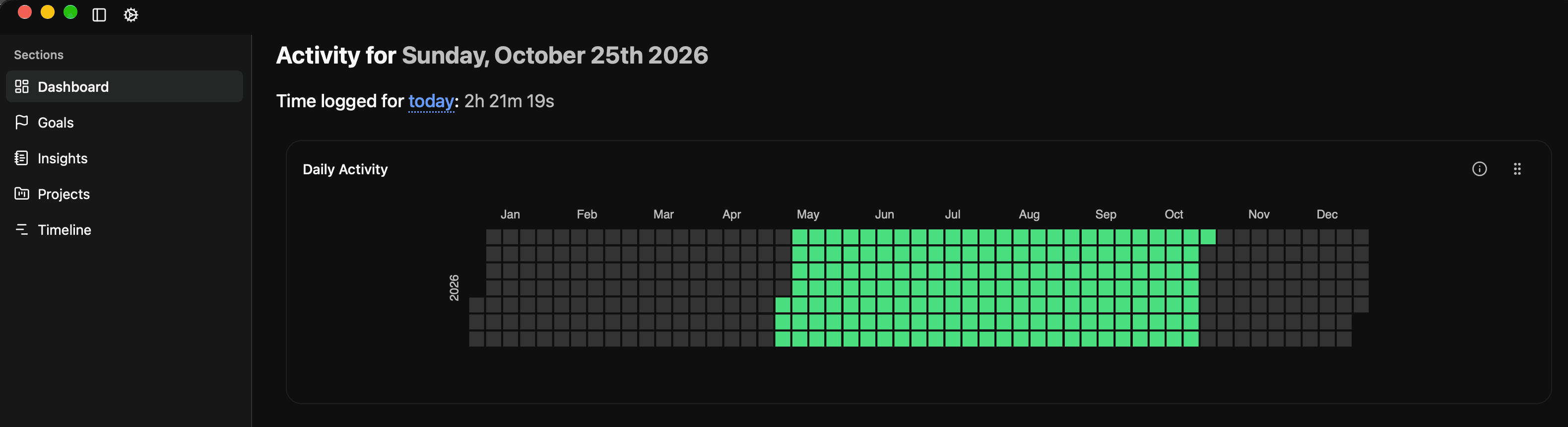
Open Settings
Click the gear icon in the top-left corner of Skopio, or press ⌘, to open Settings.
- 3
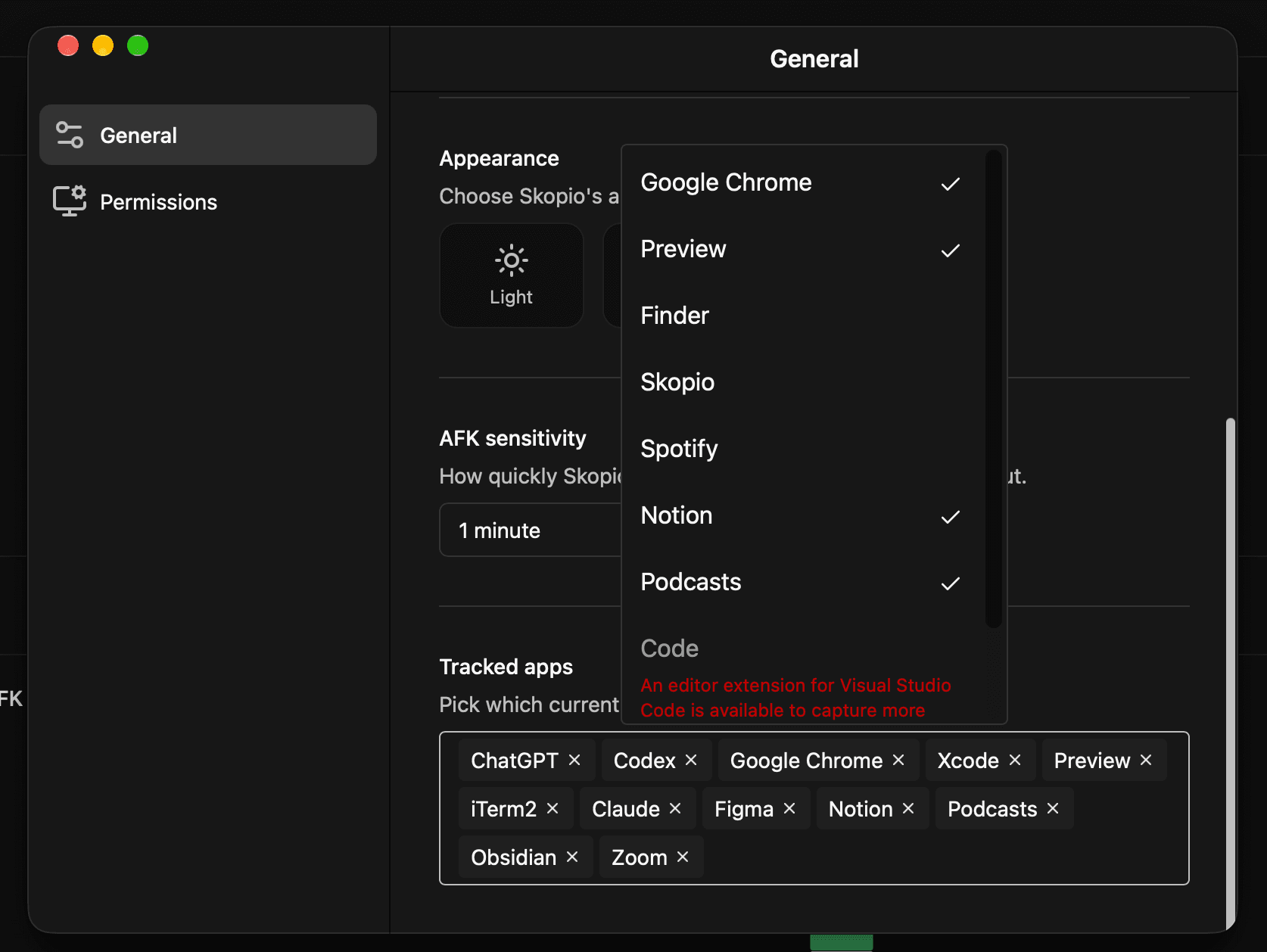
Add Dia to Tracked apps
Dia must be running so it appears in the selector. In General settings, find Tracked apps, open the selector, then choose Dia.
- 4
Use Dia normally
That’s it—Skopio will recognize Dia and include the time you spend in it on your dashboard.
Your data stays local on your Mac. Skopio only records activity from the apps you choose under Tracked apps.