
JetBrains extension
Connect Android Studio to Skopio
Install the Skopio extension in Android Studio to capture coding, debugging, compiling, documentation, testing, and review activity.
Installation
Up and running in 3 steps
- 1
Open the Plugins settings
In Android Studio, open Settings or Preferences, select Plugins, then choose the Marketplace tab.
- 2
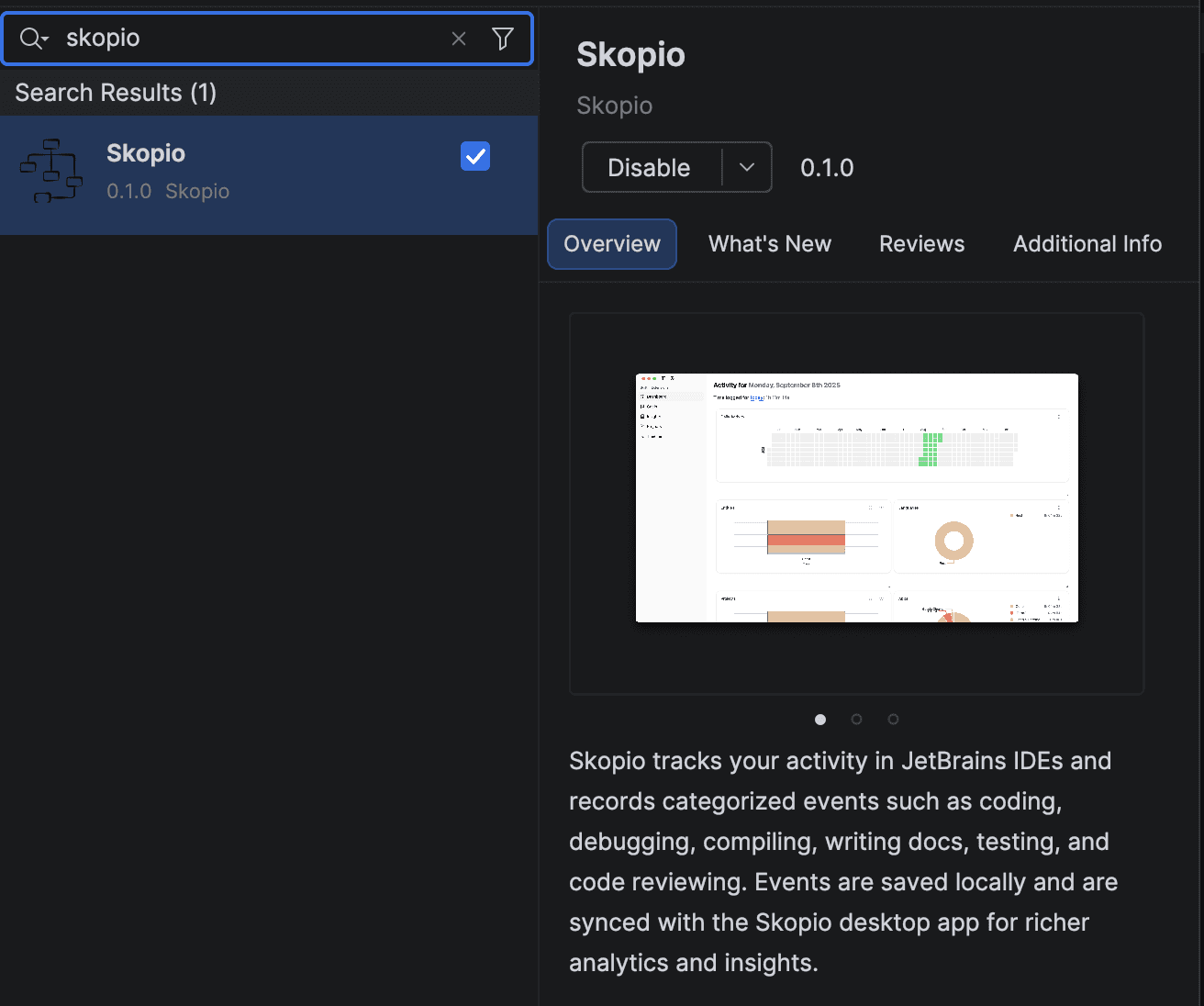
Search for Skopio
Search for “Skopio”, select the extension published by Skopio, and click Install.
- 3
Restart Android Studio
Restart the IDE if prompted. Keep the Skopio desktop app running so your local events can sync to the dashboard.
Your data stays local on your Mac. The extension sends activity events only to the Skopio desktop app running on your device.